Import tasks from Todoist, TickTick and Google Tasks – without retyping
Switching task apps should not cost you an evening of copy-paste. Import in CORTEX reads a backup from Todoist, TickTick, Google Tasks or any CSV file, shows you a preview and creates nothing until you confirm. If you don’t like the result, one click undoes the whole import. Below: exactly where to export from each app, what carries over – and what doesn’t.
- CORTEX imports tasks from Todoist (backup ZIP, project CSV or JSON), TickTick (backup CSV), Google Tasks (Google Takeout) and any CSV with a header row.
- Before anything is created you see a preview: counts of tasks and subtasks, the projects found, the first 20 tasks and a list of what does not map 1:1.
- Projects can become categories (the default), goals, or nothing; completed tasks come over only if you want them, and without XP.
- Importing the same file again creates no duplicates, and one Undo import button removes everything the import created.
- Reminders, assignees, attachments and comments as separate items are not imported.
The steps in other apps were verified as of ; their menus and export formats may change.
Where to find the import
Open Settings → Import from other apps. A three-step wizard walks you through source and file, preview and import. Below it is a list of your recent imports, each with an Undo import button.
The same option appears during onboarding (“Have tasks elsewhere? Bring them over”), so you can move your tasks right after signing up and carry on with your first day plan. CORTEX is free for everyone, and so is the import.
How to export from Todoist, TickTick and Google Tasks
| App | Where the export is | File |
|---|---|---|
| Todoist | In a project ⋯ → Manage data → Export as CSV (on the free plan too). On a paid plan also Settings → Backups → Download. | CSV (one project) or a ZIP backup (all active projects) |
| TickTick | In the web app, create a backup in Settings (the exact menu label may differ) | CSV |
| Google Tasks | takeout.google.com → select only “Tasks” → download | ZIP |
| Anything else | A CSV export of a table or list from any app | CSV with a header row |
Files can be up to 10 MB. CORTEX recognises the format from the content, so there is nothing to rename. For a generic CSV the wizard guesses the columns from English or Czech header names (title, notes, date, priority, tags, project, completed), and you can change each one.
What the preview shows before anything changes
- Counts of tasks, subtasks, repeating and completed tasks – and how many you already imported earlier.
- The projects or lists found, as checkboxes, so you bring over only what you want.
- What projects become: categories (the default), goals, or nothing.
- “Also bring completed tasks” – off by default; completed tasks come in as history with no XP.
- The first 20 tasks and a list of what does not map 1:1, with counts and examples.
The import itself runs in one go and ends with a report: what was created, which existing categories or goals were reused and what was skipped.
What carries over, and how
| Todoist | TickTick | Google Tasks | |
|---|---|---|---|
| Projects / lists | category or goal | category or goal | category or goal |
| Labels / tags | labels and sections | tags and folder | – |
| Priority | p1 → critical, p2 → high, p3 → medium | high, medium, low | – |
| Dates | planned day and time; deadline as the deadline | start as the planned day, due as the deadline | planned day |
| Recurrence | the recurrence text, read by the English and Czech parser | the repeat rule | – |
| Subtasks | yes (deeper levels flattened) | yes, including checklist items | yes |
| Notes | comments into the description | – | notes into the description |
Repeats CORTEX can’t read (“every 3rd Friday of the quarter”) stay in the task notes as ↻ text and are listed in the import report; unreadable dates stay in the notes too. Reminders, assignees and durations are ignored and listed as such.
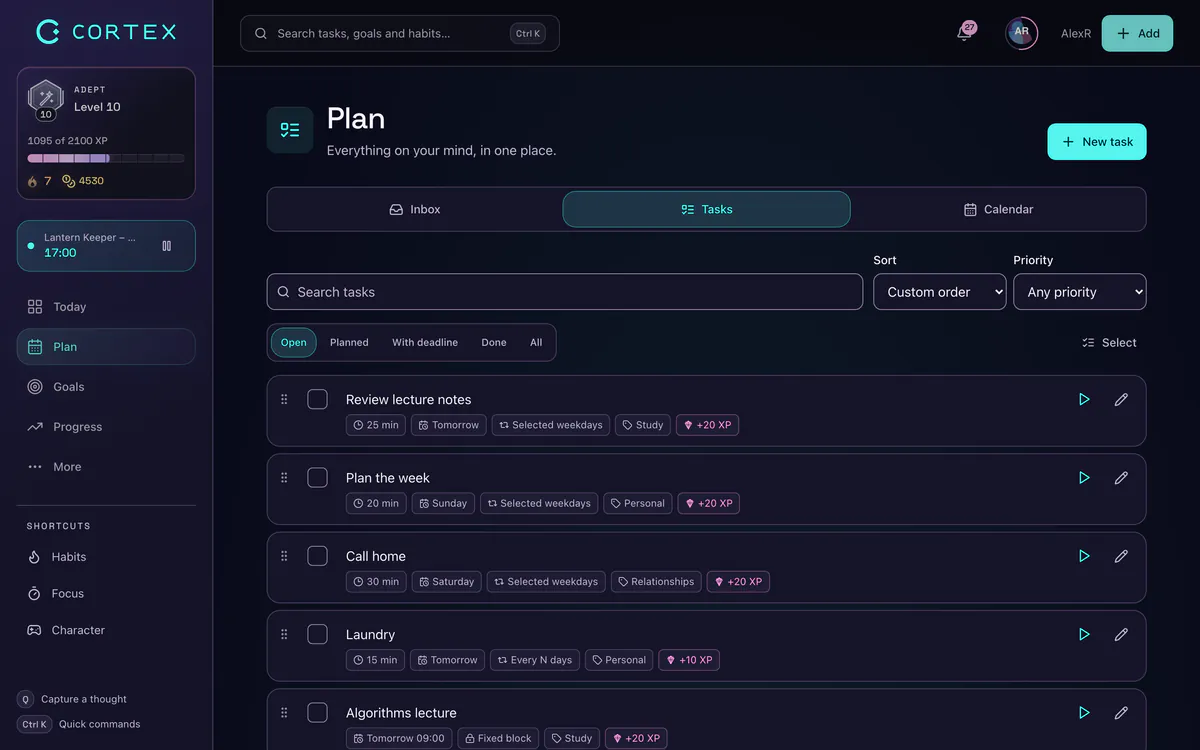
Safe by design: no duplicates, one-click undo
- No duplicates. CORTEX remembers what it created from which source. Upload the same file twice and nothing is doubled – useful if you keep using Todoist for a few more days and import again.
- Undo import. One button removes everything that import created. Categories and goals it made are removed only if nothing else uses them by then.
- Your file is not stored. The raw file is never kept; the prepared preview is deleted after the import, or after 7 days if you never finish it.
- No XP farming. Imported completed tasks pay no XP, credits or streaks – rewards are only for work you do in CORTEX.
Your first day after switching
- Check the categories and goals the import created. A big project often works best as a goal – CORTEX then tracks its progress from finished tasks (see the goal tracker).
- Look for tasks with ↻ in the notes and set their recurrence by hand.
- Press Plan my day. The day planner fits today’s tasks into your free time around fixed meetings and leaves a buffer.
- Capture new tasks in one line: press Q and type “tomorrow 2pm call Peter ~30m !!” – date, time, estimate and priority are parsed for you (more on the to-do list app page).
What CORTEX does and doesn't do (no team projects or integrations, for example) is summed up on the to-do list app page.
Frequently asked questions
How do I move my tasks from Todoist to another app?
Export a project as CSV in Todoist (⋯ → Manage data → Export as CSV); on a paid plan you can also download a full backup (Settings → Backups). In CORTEX open Settings → Import from other apps, upload the file, check the preview and confirm.
Do recurring tasks come over?
Yes. For Todoist, CORTEX reads the recurrence text with its English and Czech parser; for TickTick it reads the repeat rule. Anything it can’t read stays in the task notes marked ↻ and is listed in the import report.
Can I undo an import?
Yes. Every import has an Undo import button that removes everything it created. Categories and goals it made are removed only if nothing else uses them by then.
What if I upload the same file twice?
Nothing is doubled. CORTEX remembers which tasks it already created from that source and skips them the second time.
Can I import from other apps?
Yes, if the app can export CSV. Use the Other CSV option and match the columns (title, notes, date, priority, tags, project, completed) in the wizard.
Sources and further reading
Level up your life
CORTEX is free for everyone. Tasks, a one-click day plan, time tracking, habits and rewards in one system – on desktop and mobile.
CREATE A FREE ACCOUNT