Free time tracking app: see where your hours really go
A time tracking app records how long you spend on each activity so you can see where your hours actually go – per project, per category, per month. CORTEX is a free one built for personal use and freelancers: you create named timers like "Client design work" or "Learning", start them with one click (several can run at once), and get reports with hours per project, finished tasks and a productivity score, exportable to CSV or PDF. Below: a simple tracking method, how the timers and reports work, a worked freelancer example and the honest limits.
- CORTEX is a free gamified productivity app – tasks, a one-click day plan, time tracking and habits, with XP, levels and real-life rewards.
- Time in CORTEX is logged with named, reusable work timers on the Today screen; several timers can run at the same time.
- Reports show total time, time per goal/project and category, finished tasks, a productivity percentage and XP trend, with presets for this month, last month, the last 30 days and this year.
- Reports can be edited manually and exported to CSV and PDF; time is linked to goals, projects and categories, not to clients, and no hourly rates are stored.
- The focus countdown (15/25/50 minutes) is not logged as time; logged time comes only from the named work timers.
Why track your time at all
Ask people how they spent last week and they will give you a confident answer that is often wrong. We underestimate how long tasks take (the planning fallacy, Buehler et al., 1994) and we have no reliable sense of where scattered half-hours disappear. A time tracker replaces the guess with a number.
That number answers practical questions:
- Freelancers: Which client or project actually pays per hour once admin and revisions are counted? Is my hourly rate realistic?
- Students: Am I studying 20 hours a week or 8 with a lot of tab-switching?
- Everyone: How much of my week goes to deep work vs. email vs. "admin"?
A simple method for personal time tracking
- Create 3–6 timers, not 30. Broad buckets you will actually use: "Client work", "Development", "Admin", "Learning". Fine-grained categories die in a week.
- Start the timer when you start, not after. One click at the beginning of a block is easier than reconstructing the day at 18:00.
- Fix mistakes the same day. Forgot to stop a timer over lunch? Edit the record before you forget what happened.
- Review once a week, deeply once a month. Compare with the previous period and decide one change.
- Do not track everything forever. Track work and learning; leave free time untracked unless you have a specific question about it.
Named timers: one click, several at once
Your timers live in the Work tracking panel on the Today screen. Each tile has a name, the total for today and a Start/Stop button. Add a new one by typing its name into "New tracker" – it is reusable from then on, so tomorrow you do not re-type anything.
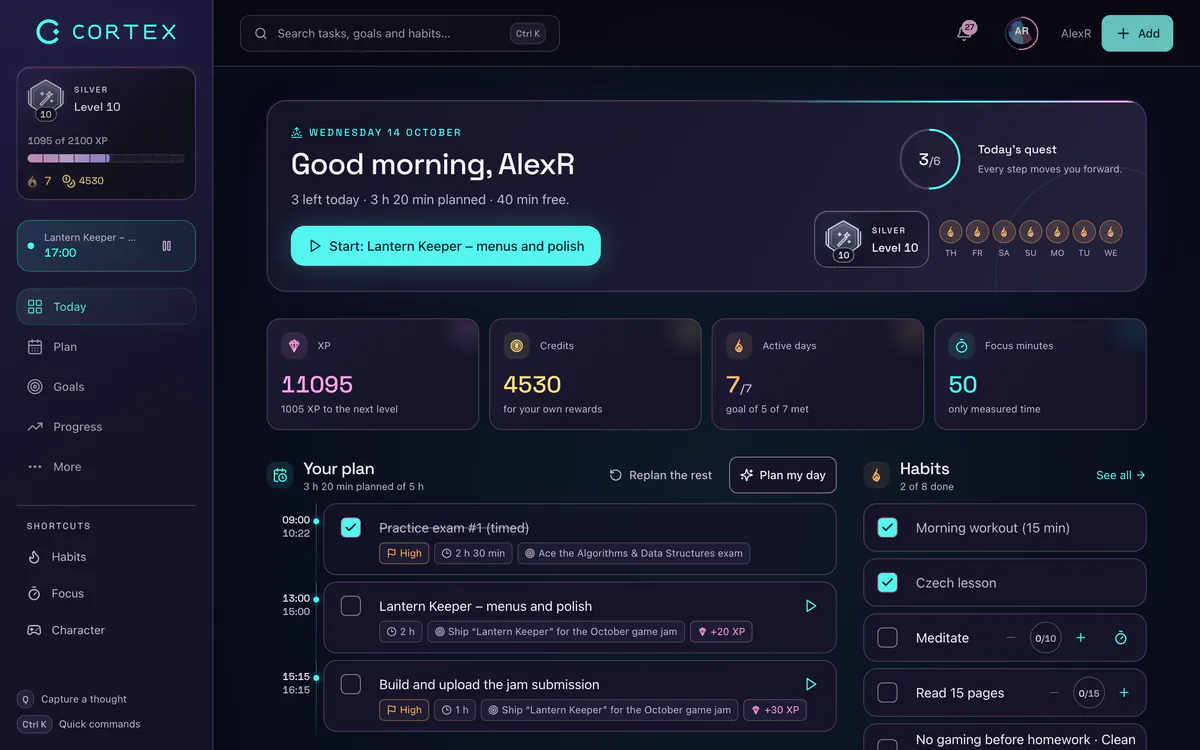
Several timers can run at once. That is useful when two things genuinely overlap – a long export or render running under "Client work" while you do admin – but remember that both will log the time, so your total can exceed the clock. For clean numbers, run one at a time.
Focus timer vs. logged time
The focus timer in the top bar (15, 25 or 50 minutes, with Lofi, Synth, Bio, Zen and Wave ambient sounds) is a countdown for concentration, perfect for the Pomodoro Technique. It does not log time. Logged time comes only from the named work timers. Best practice: start the work timer for the project, then start a 25-minute focus countdown inside it.
Reports: hours per project, CSV and PDF
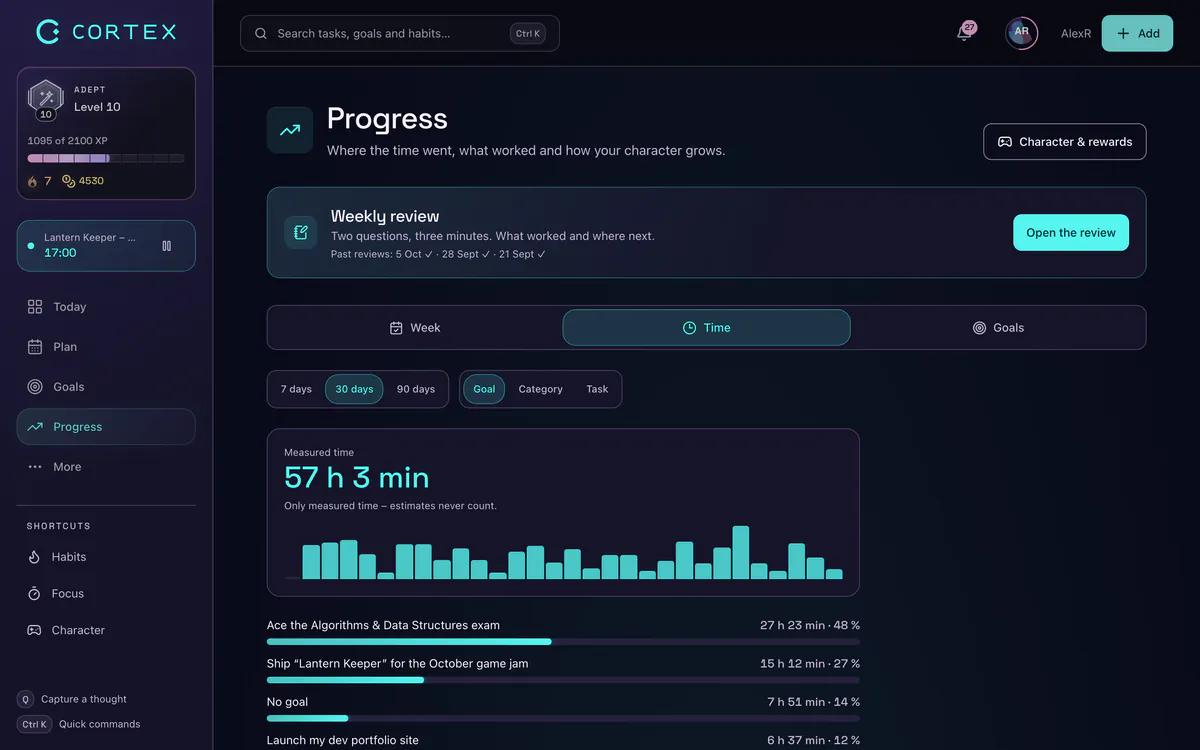
The Detailed Reports page turns timer records into answers. Pick a range (or use the presets This month, Last month, Last 30 days, This year) and optionally filter by category. You get:
- Total time in the period and the number of records.
- Time per project as a stacked bar and a list with hours and percentages.
- Time per goal and category, finished tasks, a productivity percentage and your XP trend.
- Every record with date, category, goal, task and duration – editable, with a button to add a historical record you forgot to time.
- CSV export for spreadsheets and PDF export for sharing or archiving.
Worked example: a freelancer’s month
Take the numbers from the screenshot above – the first 13 days of a month:
| Timer | Time | Share | Billable? |
|---|---|---|---|
| Client design work | 11 h 55 m | 45 % | yes |
| Development | 11 h 20 m | 43 % | yes |
| Learning | 2 h 05 m | 8 % | no |
| Admin & invoicing | 1 h 20 m | 5 % | no |
| Total | 26 h 40 m | 100 % |
Billable time is 23 h 15 m, or about 87 % of tracked hours. At a rate of $60 per hour that is 23.25 × 60 = $1,395 of billable work so far. But your effective rate across all tracked hours is $1,395 ÷ 26.67 ≈ $52 per hour – and that is before the untracked emails and calls. That gap is exactly what most freelancers never see and why their rate ends up too low.
To do this math, export the CSV and add your rate in a spreadsheet; CORTEX itself does not store hourly rates. Then plug the real billable share into the freelance hourly rate calculator.
Monthly review: this period vs. the last one
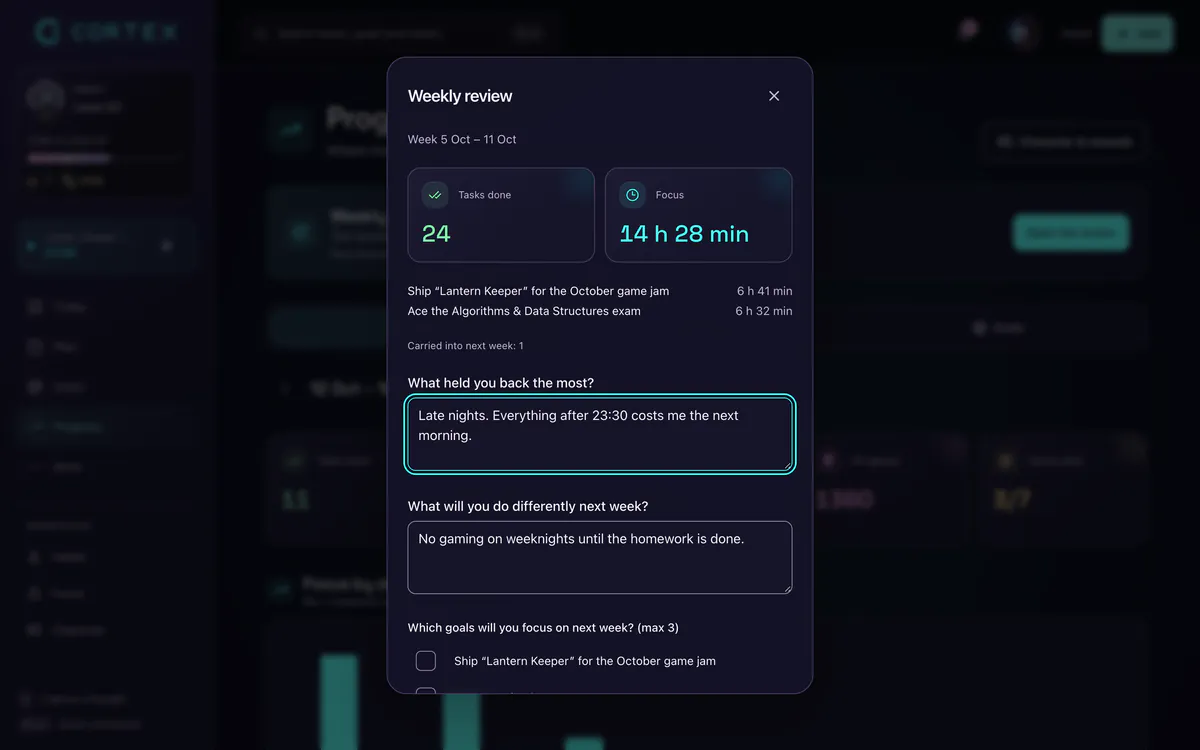
The Monthly overview compares your time tracked, tasks done and credits earned with the previous period, shows activity by day and your current streak. One look tells you whether this month is ahead or behind – no spreadsheet needed.
Because CORTEX is a gamified productivity app, time also connects to the game: finished tasks pay XP and credits, and you can spend credits on rewards you set yourself.
Honest limits: what CORTEX is not
CORTEX is a free time tracking app for personal use and solo freelancers, not a team or billing system:
- No client billing. Time is linked to goals, projects and categories, not to clients; there are no hourly rates and no invoices generated from time. (CORTEX does include invoicing for Czech freelancers, but it is Czech-only.)
- No automatic tracking. No idle detection, no app or website monitoring – you start and stop timers yourself.
- No team timesheets or approvals.
- No native desktop or store app – it runs in the browser and installs as a PWA on phones.
- No calendar sync or imports from other trackers.
If you bill several clients by the hour, need billable rates per client or track a team, a dedicated tracker such as Toggl Track or Clockify is the better tool – see Toggl and Clockify alternatives. If you want simple timers next to your tasks, habits and day plan, with reports and exports, CORTEX covers it for free. More for solo workers on the app for freelancers page.
Toggl Track and Clockify are trademarks of their respective owners. CORTEX is not affiliated with them.
Frequently asked questions
What is the best free time tracking app for personal use?
For personal use you want one-click timers, clear reports and no paywall. CORTEX gives you named timers, reports per project and category, a monthly review and CSV/PDF export for free, alongside tasks and habits. If you need automatic app monitoring, look at a dedicated tracker.
Is there a free time tracking app for freelancers?
Yes. CORTEX is free for everyone and shows hours per project with CSV and PDF export. It does not store client rates or create invoices from time, so you calculate billable amounts from the export; if you bill many clients hourly, a dedicated tool like Toggl Track or Clockify may suit you better.
Can I run multiple timers at the same time?
Yes. Several CORTEX work timers can run at once. Each one logs its own time, so overlapping timers count the same minutes twice in your totals.
Does the Pomodoro focus timer log my time?
No. The 15, 25 and 50-minute focus countdown is only for concentration. Time is logged by the named work timers, so start the work timer for your project and use the focus timer inside it.
Can I export my time tracking data?
Yes. The reports page exports the selected period to CSV for spreadsheets and to PDF for sharing or archiving.
Can I add time I forgot to track?
Yes. On the reports page you can add a historical record and edit or delete existing records.
Sources and further reading
Level up your life
CORTEX is free for everyone. Tasks, a one-click day plan, time tracking, habits and rewards in one system – on desktop and mobile.
CREATE A FREE ACCOUNT