Time Blocking: How to Time Block Your Day (With a Template)
Time blocking is a planning method where you give every task a specific slot in your calendar – “09:00–10:30 write the report” instead of “write the report” on a list – so your day has a realistic shape before it starts. Below: the 7-step method, a worked template you can copy or print, the buffer rules that keep a plan alive past 11 a.m., and an ADHD-friendly version.
- Time blocking means assigning each task (or group of small tasks) a fixed start and end time in your day, instead of keeping an open-ended to-do list.
- Cal Newport popularized the modern version on his blog in 2013 and later in The Time-Block Planner; the core rule is to re-plan the rest of the day when a block breaks, not to abandon the plan.
- People reliably underestimate how long tasks take (the “planning fallacy”, Buehler, Griffin & Ross 1994), so a workable time-blocked day leaves roughly a quarter of the time as buffer.
- Put fixed appointments in first, then one or two focus blocks in your best hours, then batch small tasks into a single “admin” block.
- In CORTEX, Plan My Day does automated time blocking: one click fills free slots between 09:00 and 22:00 in 15-minute steps, overdue first, then by priority, shortest first.
What is time blocking?
Time blocking is scheduling your tasks into concrete blocks of time on a calendar or paper timeline. A to-do list tells you what to do; a time-blocked day also tells you when – and, just as important, shows you when you have run out of day.
That last part is the real superpower. A list of 14 tasks looks doable at 8 a.m. Try to place those 14 tasks into the eight hours between your meetings and you see instantly that four of them won’t happen today. You can then decide which four, instead of discovering it at 6 p.m. with a sinking feeling.
The method is old – people have planned days on paper for centuries – but the version most people mean today comes from computer scientist and author Cal Newport. In a 2013 blog post he described spending a short session at the end of each workday blocking out the next one, and he later turned the approach into The Time-Block Planner. His key point: the plan will break, and when it does you simply redraw the rest of the day. The goal isn’t to follow a schedule perfectly; it’s to keep making deliberate decisions about your time.
Time blocking pairs well with deep work (it protects long, uninterrupted stretches) and with the Pomodoro Technique (it tells you how to work inside a block).
Time blocking vs. timeboxing vs. task batching
| Method | What you do | Best for |
|---|---|---|
| Time blocking | Give each task a slot in the day | Seeing what really fits, protecting focus time |
| Timeboxing | Set a hard limit for a task and stop when it ends | Perfectionism, tasks that expand forever |
| Task batching | Group similar small tasks into one block | Email, invoices, calls, errands |
| Day theming | Give whole days one focus (“Monday = clients”) | People juggling several roles or projects |
In practice you mix them: a time-blocked day usually contains a timeboxed focus block and a batched admin block.
How to time block your day in 7 steps
Plan the next day at the end of the current one (10–15 minutes), or first thing in the morning before you open email. Here is the full routine:
- Dump everything. Write down every task that could happen tomorrow – from your to-do list, email, messages and your head. Don’t filter yet.
- Pick what matters. Mark the one to three tasks that would make the day a win. If you struggle to choose, run the list through the Eisenhower Matrix first.
- Estimate honestly. Write a duration next to each task, then add 50% to anything you have never done before. Your gut is optimistic; your calendar shouldn’t be.
- Place the fixed stuff. Meetings, classes, pick-ups, lunch, the gym. These are the walls; everything else fills the rooms between them.
- Block your most important task into your best hours. For most people that is the first half of the day, but if you are sharper at 4 p.m., use 4 p.m. Aim for at least one 60–120-minute focus block.
- Batch the small stuff. Put email, replies, invoices and quick errands into one or two 30–45-minute “admin” blocks instead of letting them leak into every hour.
- Add buffers and an overflow block. Leave gaps between blocks and keep one flexible block late in the day for whatever ran over (more on this below).
During the day, when something blows up your plan – and something will – take two minutes to re-block the remaining hours. Moving a block is not failure; working without a plan for the rest of the afternoon is.
Time blocking template (worked example)
Here is a realistic time-blocked day for a freelance designer with one client call. Copy the structure, swap in your own tasks. Notice how little of the day is actually “big work” – that is normal, and seeing it is the point.
| Time | Block | Type |
|---|---|---|
| 08:30–08:45 | Review the plan, open only the files for block 1 | Planning |
| 08:45–10:45 | Homepage mockup v2 for Corner Café (two 50-min sprints) | Focus |
| 10:45–11:00 | Buffer / walk | Buffer |
| 11:00–11:45 | Email, messages, send invoice reminder | Admin batch |
| 11:45–12:45 | Lunch | Fixed |
| 12:45–13:00 | Prep notes for client call | Prep |
| 13:00–13:30 | Client call – logo feedback | Fixed |
| 13:30–15:00 | Apply logo feedback + export files | Focus |
| 15:00–15:15 | Buffer | Buffer |
| 15:15–16:15 | Overflow: whatever ran over, else portfolio update | Flexible |
| 16:15–16:30 | Shutdown: log time, block tomorrow | Planning |
Want it on paper? Print the blank time blocking template below (A4 or US Letter). The left column is the timeline; write blocks across the rows and draw a line through each block when it’s done. For a full week view, use the free printable weekly planner.
Time blocking template – Date: ____________
Top 3 today: 1. ______________________ 2. ______________________ 3. ______________________
| Time | Block (verb + outcome) | Done |
|---|---|---|
| 07:00 | ||
| 07:30 | ||
| 08:00 | ||
| 08:30 | ||
| 09:00 | ||
| 09:30 | ||
| 10:00 | ||
| 10:30 | ||
| 11:00 | ||
| 11:30 | ||
| 12:00 | ||
| 12:30 | ||
| 13:00 | ||
| 13:30 | ||
| 14:00 | ||
| 14:30 | ||
| 15:00 | ||
| 15:30 | ||
| 16:00 | ||
| 16:30 | ||
| 17:00 | ||
| 17:30 | ||
| 18:00 | ||
| Evening |
Overflow / didn’t fit → move to: ______________________________________________
Buffers: the rule that makes a time-blocked day survive
The number one reason time blocking “doesn’t work” for people is a plan with zero slack. Research on the planning fallacy (Buehler, Griffin & Ross, 1994) found that people predicting their own task completion times are consistently too optimistic – even when they remember that similar tasks ran late before. Your block estimates will be wrong in one direction, so plan for it.
Practical buffer rules:
- Schedule about 75% of your available time. If you have 8 free hours, block 6. The rest absorbs overruns, interruptions and bathroom breaks.
- 10–15 minutes between big blocks. Switching from a call to deep work takes time; pretend it doesn’t and every block starts late.
- One overflow block in the afternoon. A flexible 45–60-minute slot where late work lands. If nothing ran over, it becomes a bonus block.
- Estimate in 15-minute units. Nothing real takes “5 minutes” once you include opening the file.
Parkinson’s law (C. Northcote Parkinson, The Economist, 1955) – “work expands so as to fill the time available for its completion” – is the flip side. Blocks that are too generous get filled too. A tight but buffered block gives you a deadline without a cliff.
There is also a mental benefit to simply making the plan. In experiments by Masicampo & Baumeister (2011), making a specific plan for an unfinished goal reduced how much that goal intruded on people’s thoughts during an unrelated task. Writing “Tuesday 14:00 – tax forms” gets the tax forms out of your head today.
Time blocking for ADHD brains
If your attention runs on interest rather than importance, a rigid hour-by-hour grid can feel like a cage you break by 10 a.m. Time blocking for ADHD-style wiring works better with a few tweaks. (This is practical productivity advice, not medical advice – talk to a professional about diagnosis or treatment.)
- Shorter blocks. 25–50 minutes instead of 2 hours. A visible countdown timer helps make time feel concrete.
- Block types, not just tasks. “10:00–11:00 any client task from this list of three” gives you a choice inside the structure – choice is often the thing that gets you started.
- Start with a 2-minute ramp. The first block of a session is “open the file and write one bad sentence”. Starting is the expensive part.
- Re-plan without guilt. Expect to redraw the day two or three times. Each redraw is a win, not evidence you “can’t do this”.
- Externalize the plan. Put it where you can see it – a second monitor, a printed sheet, a phone widget – not in a calendar tab you never open.
- Reward the block, not just the project. A tick, a point, a small treat after each finished block gives your brain the “now” payoff a deadline three weeks away can’t.
For more on structuring days when planning is the hard part, see the ADHD planner guide and how to stop procrastinating.
Common time blocking mistakes
- Blocking every minute back-to-back. No buffers means the first overrun cascades through the whole day.
- Treating the plan as a contract. When reality changes, change the plan. Newport’s advice is literally to cross out and rewrite the remaining blocks.
- Planning only work. Lunch, the commute, picking up kids and exercise take time. If they aren’t on the plan, they eat focus blocks.
- Putting deep work in the leftovers. If your one important task sits at 16:30 after six meetings, it won’t happen. Block it first.
- Tiny tasks as separate blocks. Ten 5-minute blocks is a to-do list in disguise. Batch them.
- Never reviewing. Compare planned vs. actual for a week. If writing tasks always take 1.5× your estimate, scale future estimates. A time tracker makes this easy.
- Planning in the morning chaos. Planning tomorrow at the end of today means you start with a decision already made.
Time blocking app: automated time blocking with Plan My Day
Paper and calendar apps work fine for time blocking – but the slow part is the puzzle: fitting tasks of different lengths around fixed appointments. That’s the part CORTEX automates. CORTEX is a free gamified productivity app – tasks, a one-click day plan, time tracking and habits, with XP, levels and real-life rewards.
Plan My Day is a transparent, rule-based scheduler (not AI – you can predict exactly what it will do):
- It takes today’s tasks, overdue tasks and tasks without a date.
- Tasks with a fixed time (a call at 13:00) stay where they are.
- Everything else fills the free slots of a 09:00–22:00 day, starting from now, in 15-minute steps.
- Order: overdue first, then by priority, then shortest first – so quick wins don’t get buried.
- Whatever doesn’t fit is listed, so you decide what to move instead of silently overbooking.
- Apply writes the times into your tasks; Re-plan recalculates when the day changes.

The estimates come from your tasks: type Homepage mockup ~2h !p1 in quick capture and the duration and priority are parsed for you. Working hours are fixed at 09:00–22:00 for now, so if you finish at 17:00, treat the evening slots as overflow.
Prefer to place blocks by hand? The CORTEX calendar has a week time-grid where you drag tasks to new times. It doesn’t sync with Google Calendar or Outlook, so keep meetings that live there in mind (or add them as fixed-time tasks).
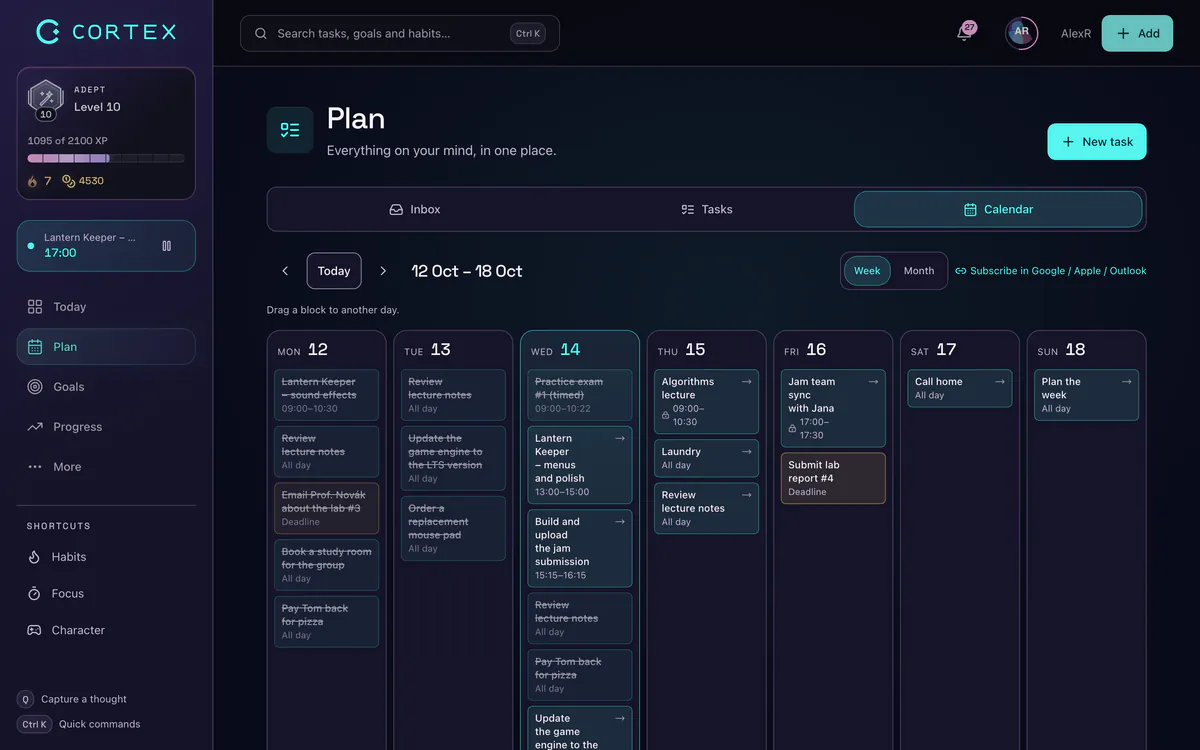
Inside each block you can run the focus timer (15, 25 or 50 minutes) and a named work timer to log real time – which gives you the planned-vs-actual numbers that make next week’s estimates better. Finished tasks earn XP and credits you spend on your own rewards. See the day planner app page for the full walkthrough.
Frequently asked questions
What is time blocking?
Time blocking is a planning method where you assign every task a specific start and end time on your calendar instead of keeping an open to-do list. It shows you in advance what actually fits into your day and protects time for important work. Cal Newport popularized the modern version.
How do I start time blocking?
Spend 10–15 minutes at the end of the day: list tomorrow’s tasks, estimate each one, place fixed appointments first, then put your most important task into your best hours and batch small tasks into one admin block. Leave buffers between blocks and re-plan the rest of the day when something breaks.
Does time blocking work for ADHD?
Many people with ADHD-style attention find a modified version helpful: shorter blocks (25–50 minutes), visible timers, choosing from a short list of tasks inside a block and re-planning without guilt. It is a productivity technique, not a treatment, so if you have or suspect ADHD, talk to a professional too.
How much buffer time should I leave when time blocking?
A good starting point is to schedule only about 75% of your available time, add 10–15 minutes between big blocks and keep one flexible overflow block in the afternoon. People tend to underestimate task durations, so a plan without slack usually collapses before lunch.
Is there a free time blocking app?
Yes. CORTEX is free for everyone and includes Plan My Day, which automatically time blocks your tasks into free slots between 09:00 and 22:00, plus a calendar with drag-and-drop in the week view. Google Calendar or any paper planner also works if you prefer to block manually.
What is the difference between time blocking and timeboxing?
Time blocking schedules when a task happens; timeboxing limits how long you will spend on it and you stop when the time is up. Most good plans combine both: a block on the calendar with a hard end time.
Sources and further reading
- Cal Newport: Deep Habits – The Importance of Planning Every Minute of Your Work Day (2013)
- Cal Newport: The Time-Block Planner
- Buehler, Griffin & Ross (1994): Exploring the “planning fallacy”, Journal of Personality and Social Psychology
- Masicampo & Baumeister (2011): Consider it done! Plan making can eliminate the cognitive effects of unfulfilled goals
- C. Northcote Parkinson: Parkinson’s Law, The Economist (1955)
Level up your life
CORTEX is free for everyone. Tasks, a one-click day plan, time tracking, habits and rewards in one system – on desktop and mobile.
CREATE A FREE ACCOUNT